
As an administrator, you can create and disable users in Konsolidator. Below is a written step-by-step guide on creating and disabling new users.
Note: If you a not an administrator, you need to contact your internal administrator for creating new users.
Step-by-step
Create a new user in 3 steps
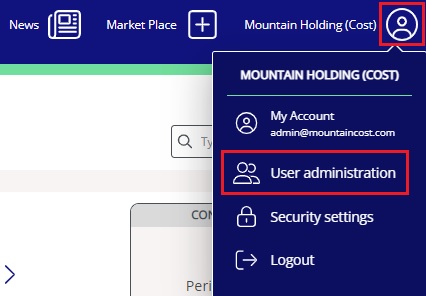
Step 1: Click on the person icon in the corner, and hereafter click on "User administration" (see the screenshot below).
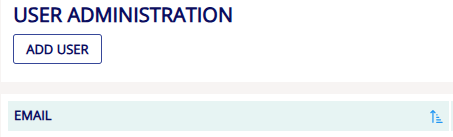
Step 2: On the User administration page, click on the button "ADD USER".
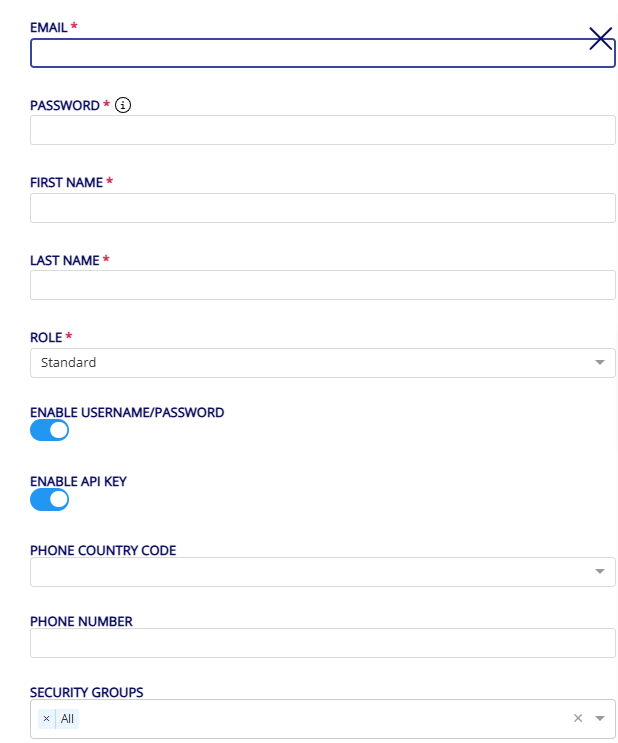
Step 3: In the pop-up window, fill in the required information and click save.
Step 4:
Instead of a single "Enable" setting, administrators can manage the following permissions:
- Enable username/password – Allows the user to log in to the Konsolidator application using a username and password.
- Enable API key – Allows the user to access Konnect using an API key.
This allows the flexibility to strengthen your security, as some users should only be allowed to access our Konnect through API key and not be allowed to login to the Konsolidator app.
Requirements for the password:
- Both small and capital letters
- At least 1 number
- At least 1 special character
- Minimum 8 digits
Note: Please be aware that the email must be a valid email.
Disable a user
On the user administration page, click on the checkmark in column 4 to disable the user. When there is no checkmark visible, the user will be disabled.

Note: If you want to fully deactivate a user and prevent all access to Konsolidator, make sure to disable both Enable username/password and Enable API key.
If you have further questions or want a user completely deleted from the system, please contact support on support@konsolidator.com