
The most frequent reason for no data as expected is missing consolidation in Konsolidator. Click the menu button “Consolidation” and click “Consolidate” for the relevant month.
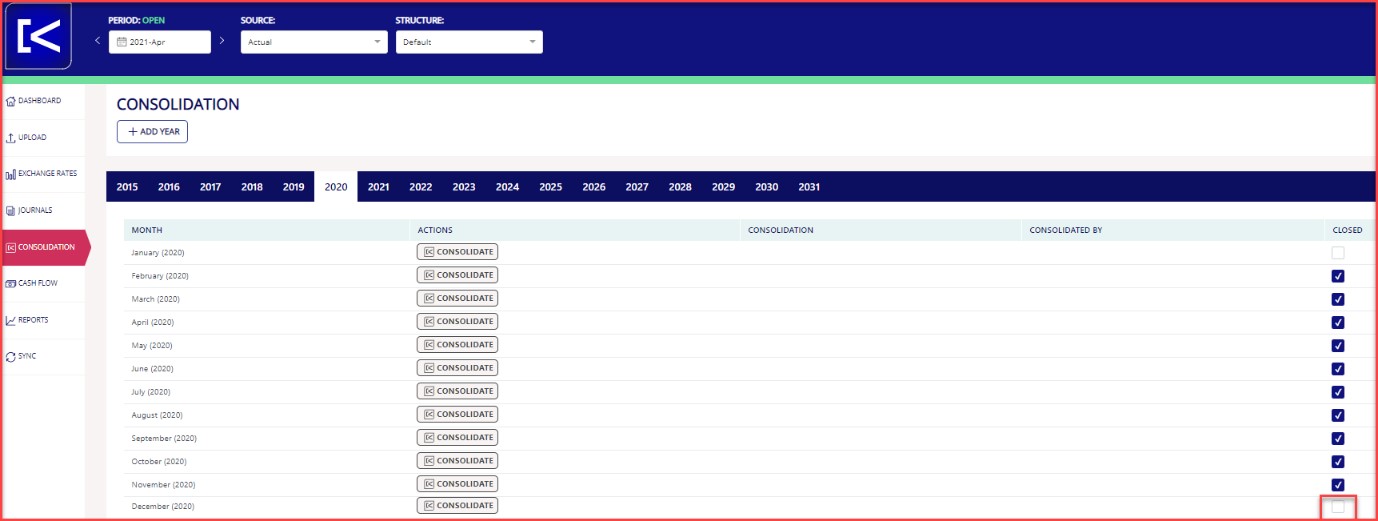
Hereafter, data is consolidated, and data should be shown.
This will also be the case when using consolidated accounts in either Excel or Power Bi.
If data is still missing, the issue is related to missing user rights, affecting the data that is possible to see in Konsolidator.
This issue can be solved by your local administrator. To change/give access to entities, your local administrator must sign in to Konsolidator and follow the guide below.
Click the icon in the upper right corner and click on Security settings.
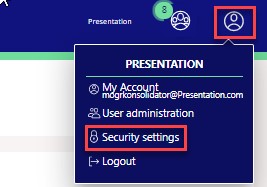
Now an overview of the security settings appears.

Select the relevant security group in the drop-down menu. Hereafter, select the relevant employee (left side) and select the relevant entities to which the employees should gain access (right side).