
Use this setup if you want to pull data from Konsolidator into Excel and build your own reports or analyses. Once the connection is created, you can refresh the data directly in Excel instead of exporting and importing files manually.
Before you start
Make sure you have:
- Access to Konsolidator Konnect (API enabled)
- Your API credentials (username and password)
- Microsoft Excel (with Power Query / “Get Data” functionality)
Note: If you want the quickest setup, we recommend starting with the Konnect Framework startup file, which already includes a pre-built connection and reporting example. Please note that we always recommend downloading our easy-to-use KonnectFramework startup file, which is already linked to Konsolidator Konnect®.
You can find the startup file here: The Konnect Framework startup file (Excel)
Step-by-step guide
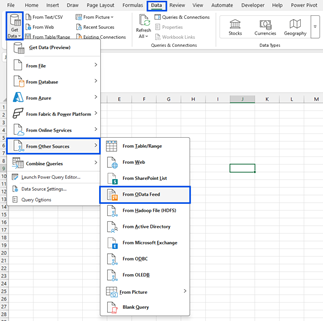
Step 1: Open the data connection menu in Excel
To open the data connection menu in Excel, go to:
- the Data tab
- Click Get Data
- Select From Other Sources
- Click From OData Feed
Step 2: Enter the Konsolidator API URL
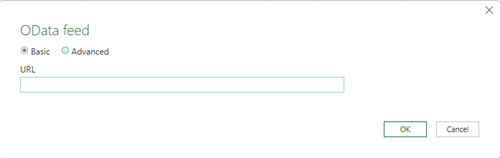
You will now see a window where you can enter a URL. Here, you have to choose one of two options, depending on what data you want: reporting data or setup and master data.
Option 1: Reporting data (financial data)
If you want reporting data, such as:
- Consolidated financial data
- Uploaded trial balance data
- KPI data
Use the following URL: https://api.konsolidator.com/v2/reports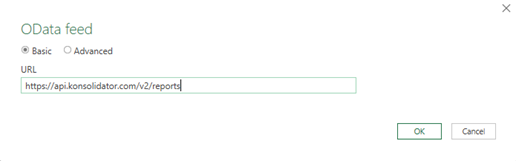
Reporting data is updated when new periods are uploaded or when consolidations are run. This means that the data in Excel may need to be refreshed to show the latest figures.
Important when working with reporting data
Some reporting tables require filters before the data can be loaded correctly. This applies to:
- /reports/consolidated-accounts
- /reports/uploaded-accounts
For these tables, you must apply single-value filterson:
- Year
- Month
- Source
- Structure
Each filter must contain one selected value. For example, you can load data for one year, one month, one source, and one structure at a time. If you need to load several periods, sources, or structures, the setup becomes more advanced and requires Power Query knowledge. If you are not familiar with Power Query, we recommend using the Konnect Framework startup file instead, as it already includes the recommended setup.
Option 2: Setup and master data
Use: https://api.konsolidator.com/v2
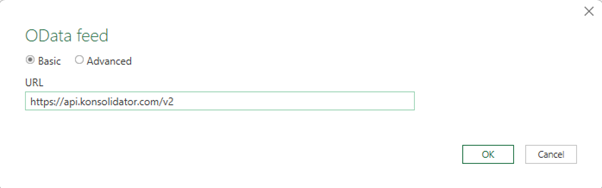 Use this when you want:
- Chart of accounts
- Company structure
- Dimensions and mappings
- Other setup-related data
- Journal entries
- Exchange rates
This data changes only when your setup changes and forms the foundation for reporting data.
Step 3: Click OK and authenticate
After entering the URL for option 1 or 2:
- Click OK
- Enter your API credentials (Konsolidator login) when prompted
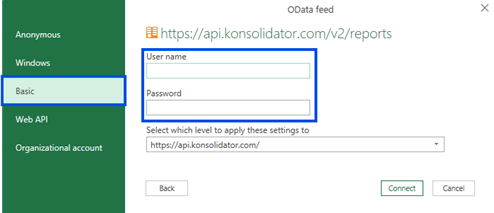
Step 4: Select the tables you need
Excel will show a list of available tables. From here you can:
- Select one or more tables
- Preview the data
- Click Load to import it into Excel
- Or click Transform Data to shape the data
Below you can see how the navigator will look depending on what URL you chose:
Available tables for https://api.konsolidator.com/v2/reports
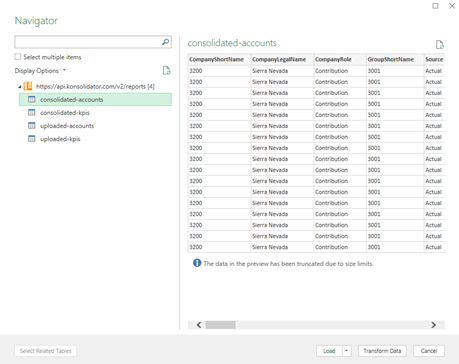
Available tables for https://api.konsolidator.com/v2
Step 5: Refresh your data
Once connected, you can refresh your data anytime:
- Go to Data → Refresh All
Excel will then pull the latest data from Konsolidator.
Relevant info
- Use**/v2/reports** for financial data
- Use**/v2** for setup and master data
- Reporting data is updated when periods are calculated and consolidated
- Set up data changes only when the configuration is updated
Learn more about available data
For a detailed overview of all available tables and data in Konsolidator Konnect, read the guide: What data is available in Konsolidator Konnect
Troubleshooting
If you experience issues:
- Double-check the URL is correct
- Verify your API credentials
- Ensure required filters are applied (for reporting tables)
- Try using the Konnect Framework file instead
- Reconnect the data source in Excel
Need help?
If you need assistance, you are always welcome to contact us at support@konsolidator.com. If you know the following, please include it in the mail:
- The URL you are using
- A screenshot of the issue
- A short description of your problem