
Move your existing reporting sheets into the newest Konnect Framework, so you can keep your current reports and use the latest Konnect features.
Before you start
Make sure you have:
- Downloaded the latest Konnect Framework file
- Your current Framework file with the reporting sheets you want to move (verify it is final and ready to be moved)
- A saved copy of your current Framework file as a backup
7 Steps-by-step
Step 1: Open both Framework files
- Open your current Framework Reporting file
- Open the latest version of the Konnect Framework file
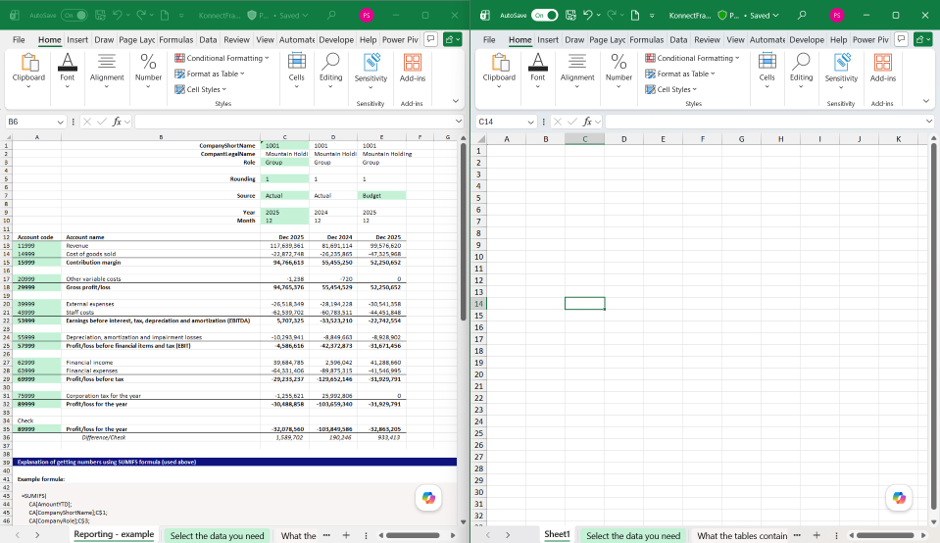
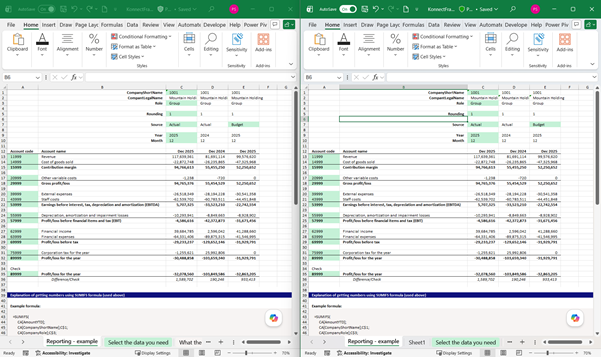
Here we have the existing reporting on the left, and on the right, we have the latest version of the Konnect Framework:
Step 2: Identify the sheets to move
- In your current Framework file, identify the sheets that contain your reporting
- Confirm that these sheets are not part of the standard framework structure.
In the example above, the sheet that needs to be moved is “Reporting example”
Step 3: Copy the sheet to the new Framework
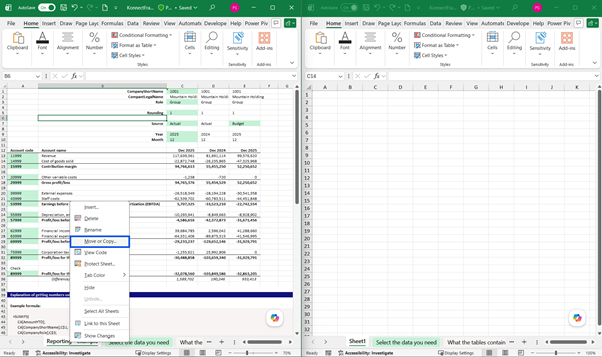
- Right-click the sheet tab in your current Framework file
- Select Move or Copy…
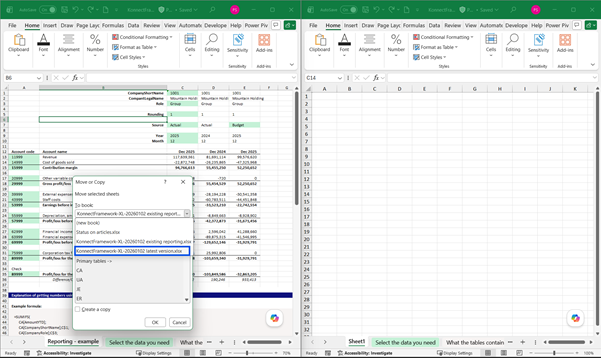
- In the dropdown, choose the new Framework file
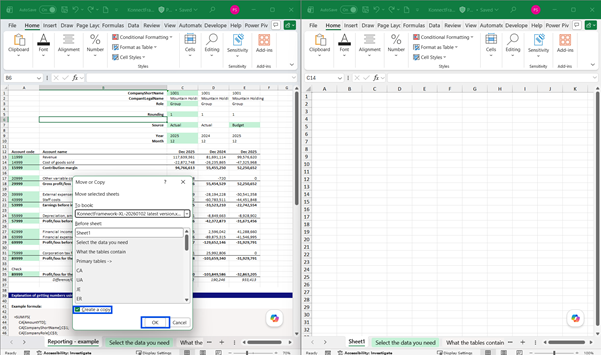
- Check Create a copy
- Select where to place the sheet
- Click OK
Step 4: Repeat for all relevant sheets
- Repeat Step 3 for each reporting sheet you want to move
Step 5: Remove links in formulas to the previous/existing reporting
- Check that all formulas, references
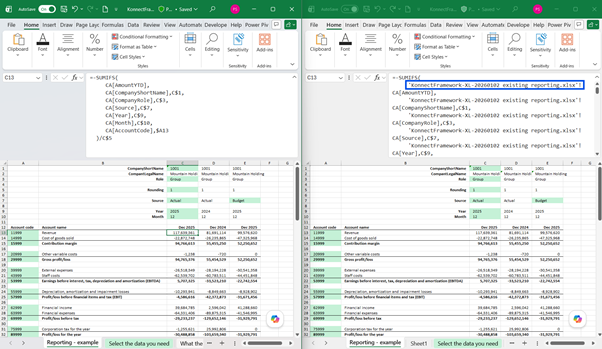
- Copy the reference to the previous/existing reporting file
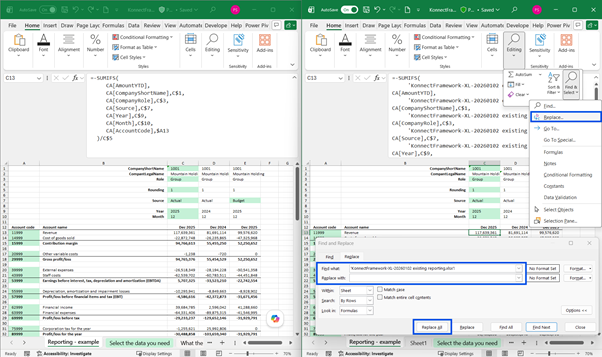
- Go to Replace and paste the link into the “Find what” area. Leave the “Replace with” area empty
- Click on “Replace all” to remove the link in the formula bars in the current sheet.
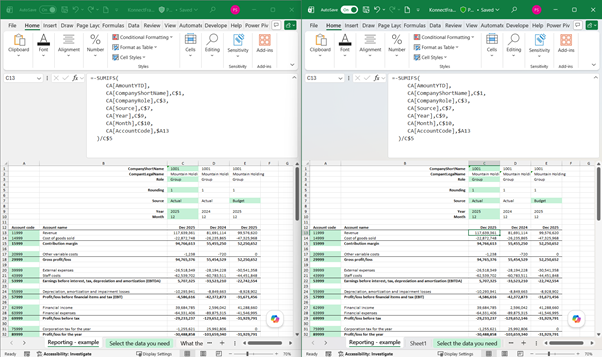
- Now the link to the previous/existing file has been removed in the new/latest file.
- Repeat this step 5 for all sheets with links to the old/existing reporting file
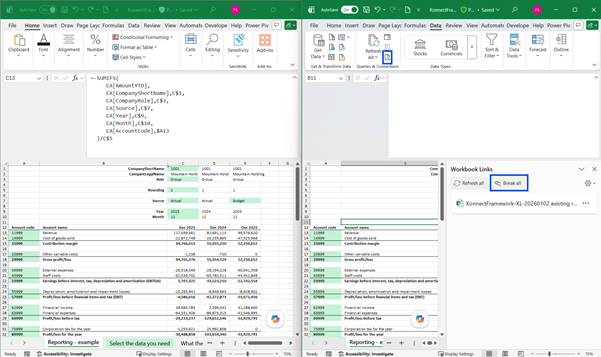
Step 6: Break the workbook link to the previous file
- Go to the data menu and select “Break workbook links”
- Break all workbook links
Step 7. Make sure everything else is set up correctly
Each reporting file may be set up differently, so make sure that everything in the new/latest version is set up like in the previous version.
Warning:
Do not copy sheets that contain data tables from Konsolidator Konnect. These tables are already included in the latest Framework file.
Copying them may create duplicate API connections, which can affect performance.
Only move the reporting sheets you have created or customized yourself.
5 best practice advice:
- Move one reporting sheet at a time
- Check formulas and references after each sheet is moved
- Pay extra attention to sheets with external references, named ranges or hidden dependencies
- Compare the new file with your previous setup before you start using it
- Save and test the new Framework file before sharing it with others
Support
If you need help, contact us at support@konsolidator.com.
Please include your company name, what you were trying to do, and any error message.