
This 3-step guide is for you who want to set up the integration between e-conomic and Konsolidator. It will guide you through the simple synchronization of your companies and their balances.
BEFORE YOU START:
- Check your user status: Only Standard or Administrator users can set up the integration.
- Log-in to e-conomic
- Log-in to Konsolidator
Step 1: Find the e-conomic integration in Konsolidator
Go to the integrations page. You can find this under the “SETUP” and then select “INTEGRATIONS” or click here: Konsolidator app - Integrations
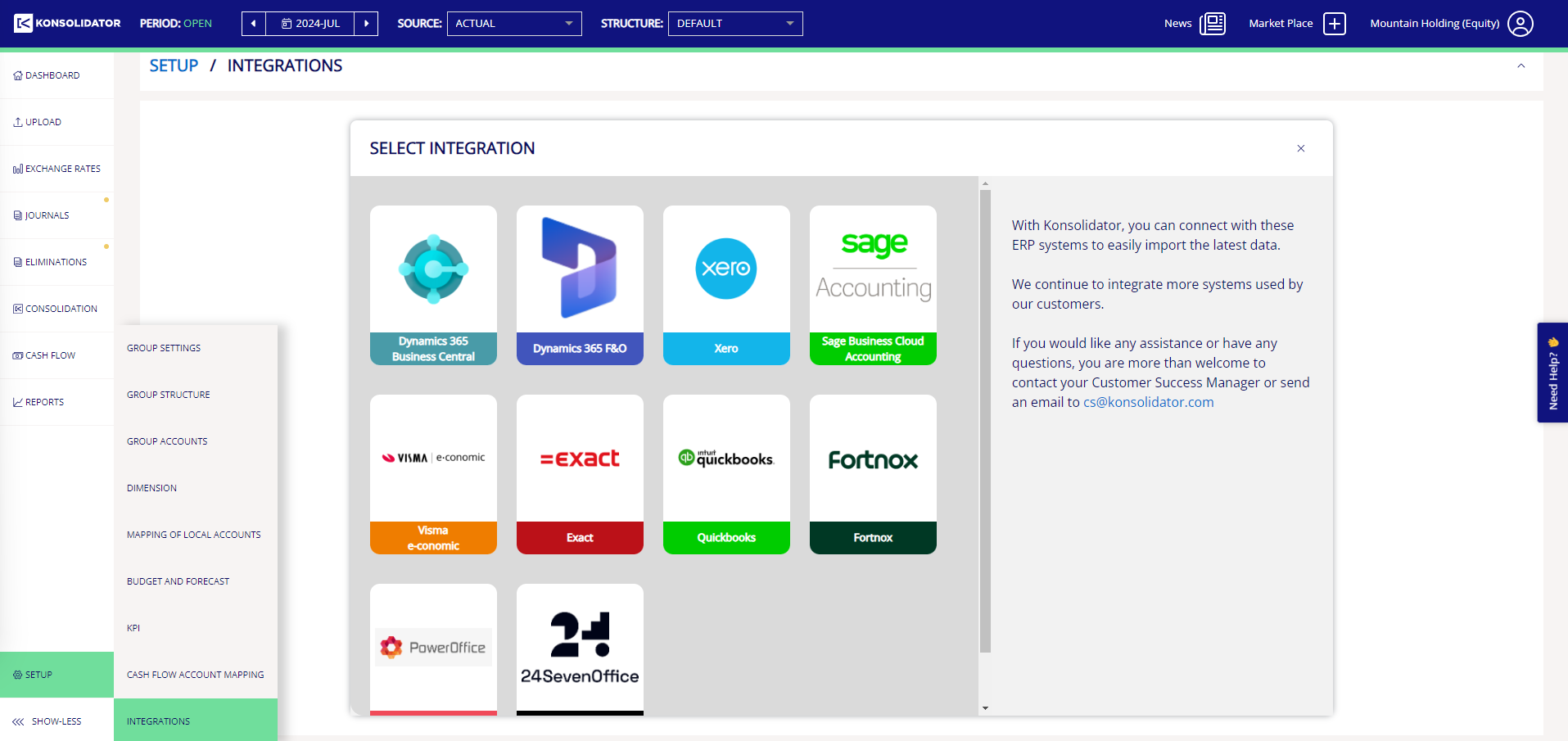
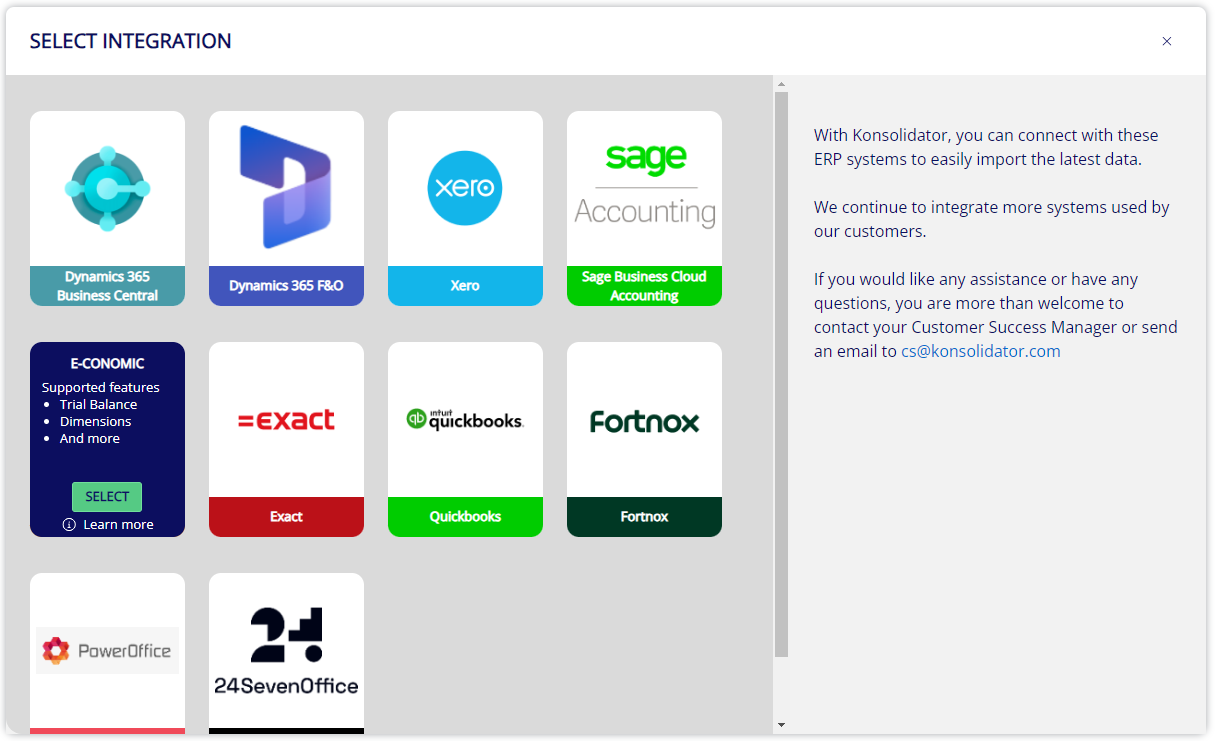
On the integrations page, mouse over the e-conomic box and click on the green "SELECT"-button:
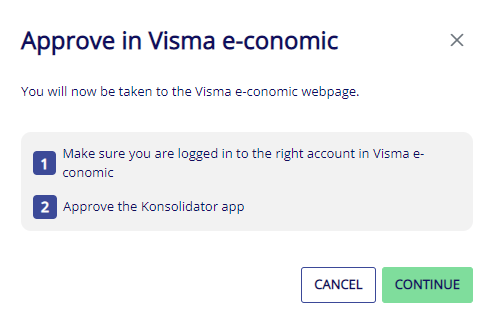
You will now be presented with a pop-up window reminding you to make sure that you are logged in to the correct e-conomic account. When ready, click "CONTINUE":
If you are not already logged into e-conomic, the following window from e-conomic pops up, which will guide you to your e-conomic log-in page: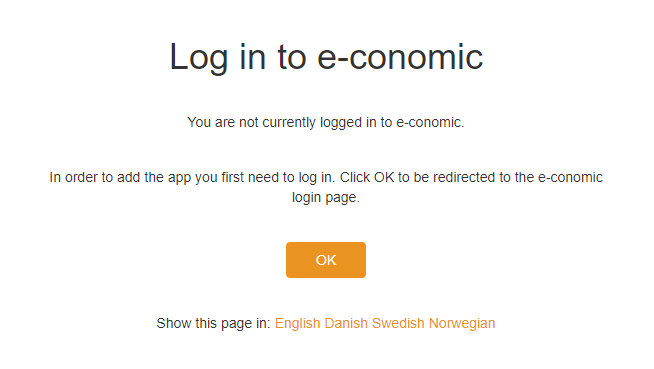
Step 2: Approve and add the E-conomic app
Once logged in, e-conomic will ask you to approve the integration. To approve click "Add app"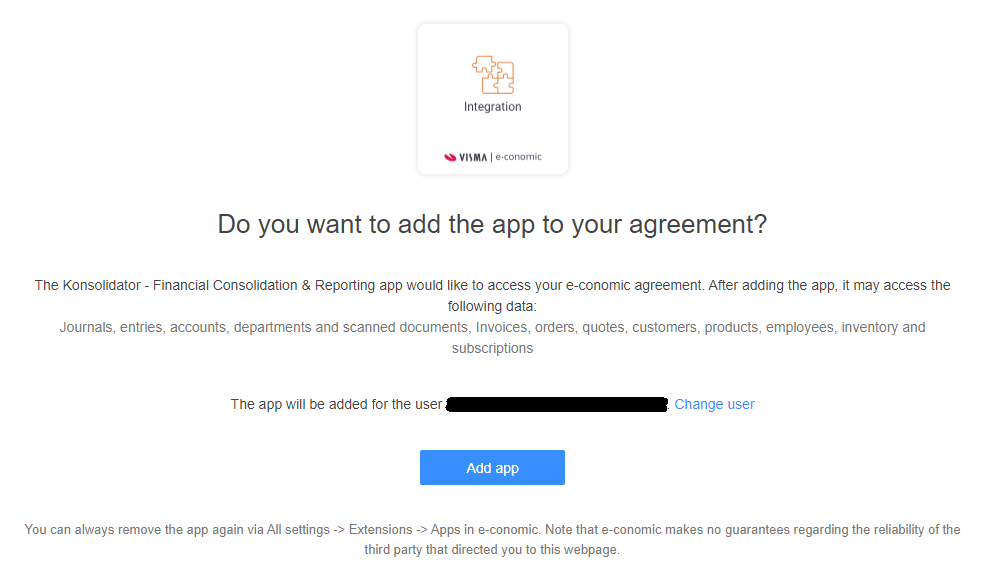
You will then be re-directed back to Konsolidator, where you should be able to see the integration.
Step 3: configure setup
Assign the integration to the correct company in Konsolidator, by selecting it from the dropdown menu. 
REPEAT THE PROCESS FOR EVERY COMPANY
Be aware that you should repeat the above steps for each company you have in e-conomic that you need to integrate with.
When adding the second company you need to use the button "ADD INTEGRATION"
Need Assistance?
Contact support for any questions regarding the integration between e-conomic and Konsolidator at support@konsolidator.com