
This how-to guide is for those of you who are using the Microsoft Business Central integration to Konsolidator and have installed a version before September 1, 2023.
The application has been re-launched with improved performance on upload of trial balances. Therefore, the article below guides you through the uninstallment, followed by a guide on setting up the integration and synchronization between Konsolidator and Business Central.
BEFORE YOU START
- Ensure you are the account owner of Microsoft Dynamics – Business Central.
- Check your version of Konsolidator inside Business Central.
Step 1: Find the Konsolidator App inside Business Central
- Log in to your Business Central Account
- Press Alt-Q to go to search and write “Extension Management” in the field

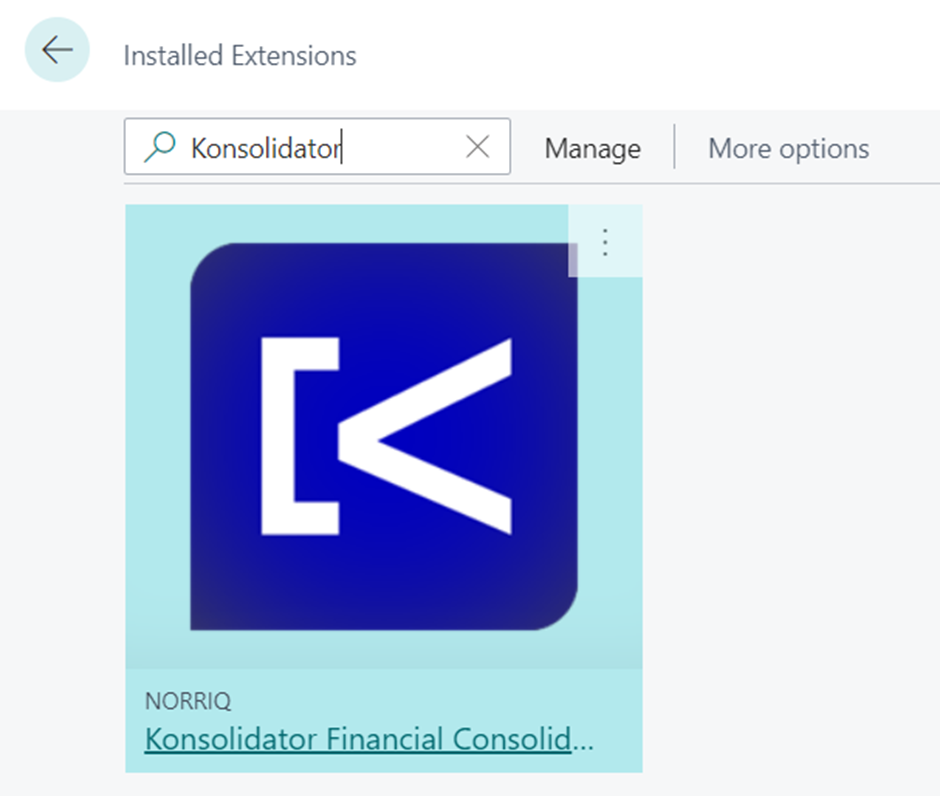
- In the pop-up “Installed Extensions”, search for Konsolidator
Step 2: Uninstall the current application
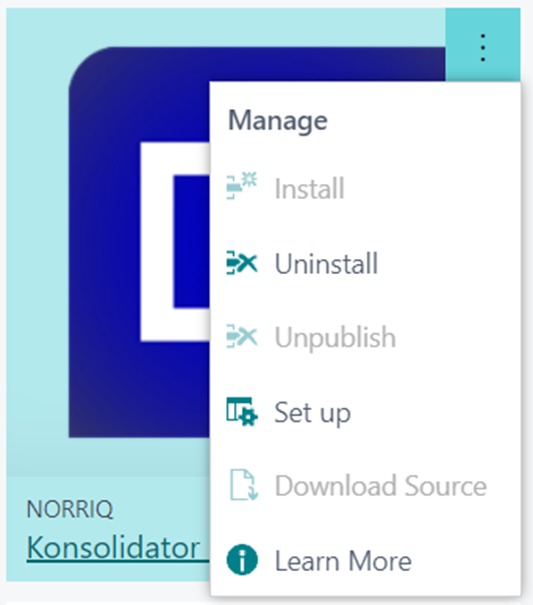
- Click on the three dots in the upper right-hand corner of the Konsolidator application
- Press Uninstall
NEXT STEP – Re-install and set up your companies and trial balances
Follow the steps in the guide: How to integrate Business Central and Konsolidator - to link your accounts and companies to Konsolidator.
We have tried to minimize any risk of errors for you when you change app. However, if you experience any bugs than we have, within the new app, installed a feature, so you can always reverse back to the previous calculation method. Meaning you can continue using the app while we fix the issue.
Need Assistance?
Contact support for any questions regarding the re-installment of the Konsolidator integration to Microsoft Business Central at support@konsolidator.com.