
Do not update your web API key via “Refresh”
If you update your web API key in Excel via the "Refresh" prompt, the changes may not apply to all queries in your workbook. This can cause repeated login errors, even if your details are correct.
Note: Every customer signed after September 2025 will use a web API key instead of credentials
Error message Example "API key is missing":
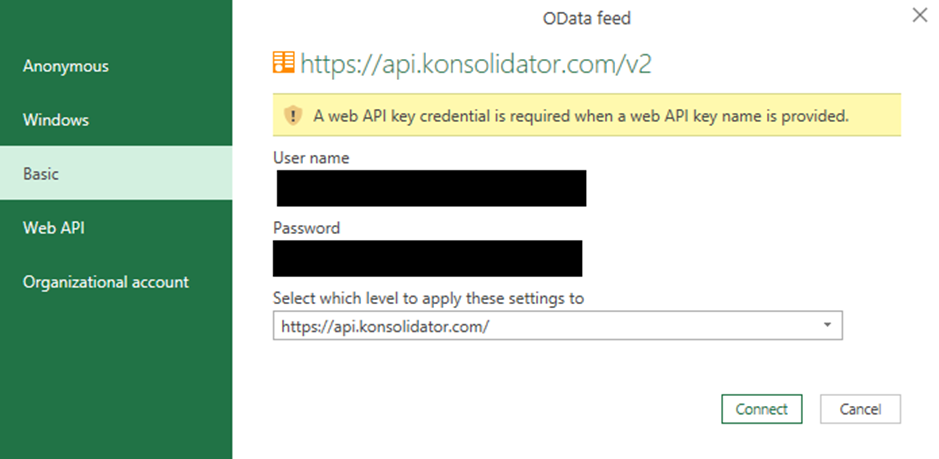
2 steps to update and use Web API Key in Excel
Step 1: Generate an API key in Konsolidator
The Konnect Framework is set up to use a Web API Key as the authentication method. If this is your first time using a Web API Key, you need to generate an API key in the Konsolidator application.
- Log in to Konsolidator and go to ‘My Account’ in the top right corner.
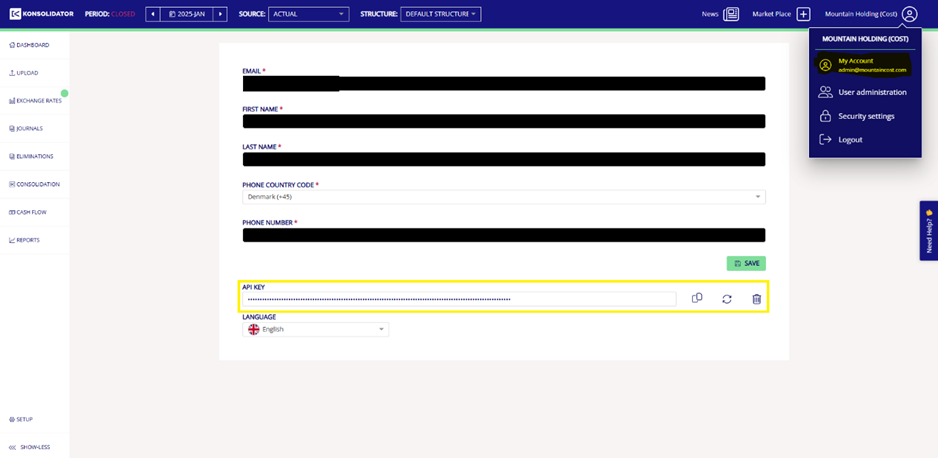
- On the API Key field, copy the API key by clicking on the two stacked pages on the right.
- Generate a new API key by clicking on the two circling arrows.
- Delete your API key by clicking on the bin.
Step 2: Update your API key in Excel
Once you have generated an API key, open your Excel file.
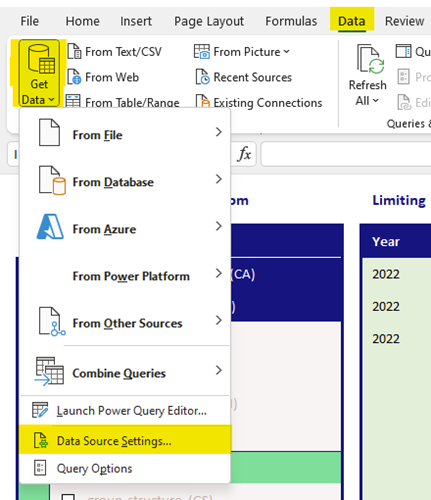
- Click on the “Data” in the top banner
- On the "Data-ribbon”, click on "Get Data", then go to "Data Source Settings...".
-
In the pop-up window in Excel, select the Konnect API ("https://api.konsolidator.com/v2") and click "Edit Permissions..."
-
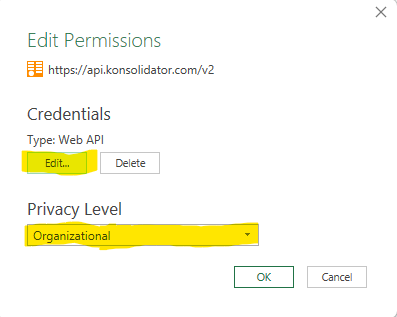
In the new pop-up window, click the "Edit..." button and make sure that you set the privacy level to "Organizational".
-
In the next pop-up window, select "Web API" and paste the Web API key from Konsolidator into this box. Then Click “Save”.
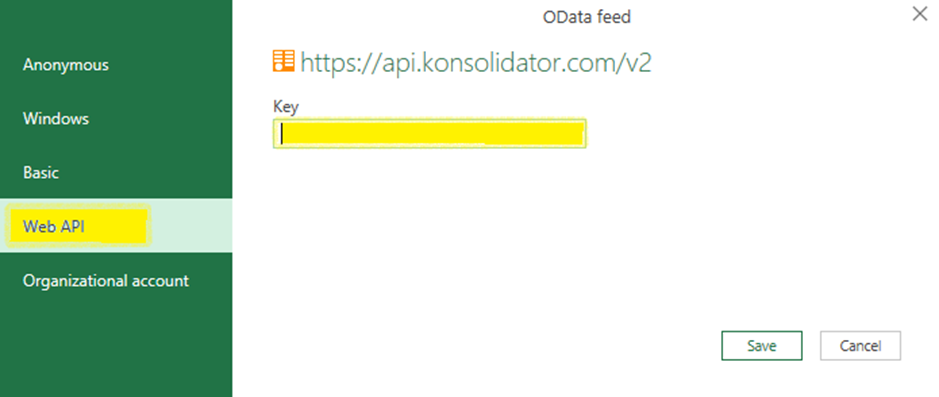
- Last, click "OK" in the "Edit Permissions" window and click "Close" on the "Data source settings" pop-up.
- If it's your first time you are refreshing data in the file, you will need to select "Organizational" again for the Current Workbook. You only get this pop-up for Privacy Levels the first time you are trying to refresh data in a new file.
You are now ready to refresh your reports using your Web API Key.
First time setting up the file?
If it's your first time downloading the Konnect Framework from our Kommunity we recommend you to Clear All Permissions before navigating to "Edit permissions".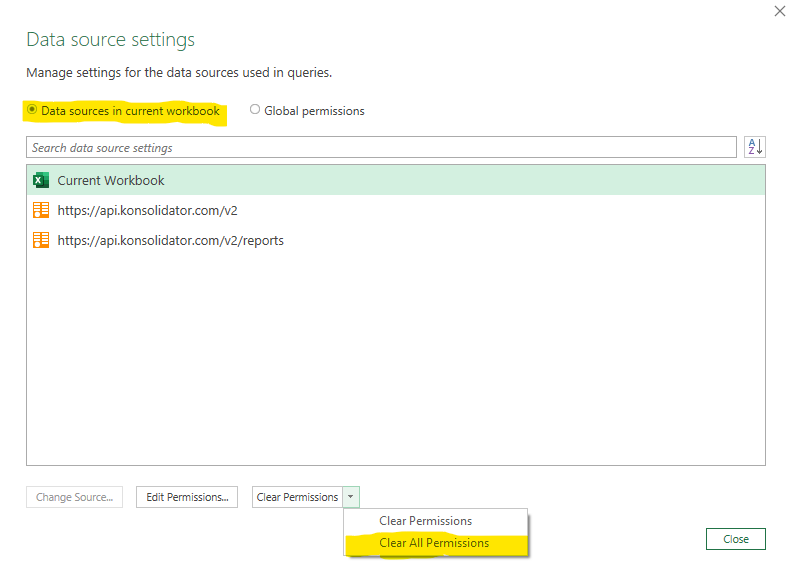
Recommendation: Only update the first /v2 URL
In the data source settings, two URLs are visible, one ending with /v2 and the other with /v2/reports. You only need to update the first /v2, and /v2/reports will automatically be updated as well.