Below you find a video and article on how to use the upload template.
After clicking on the button "Upload" on the left side of the screen an overview of uploads for the selected period appears.
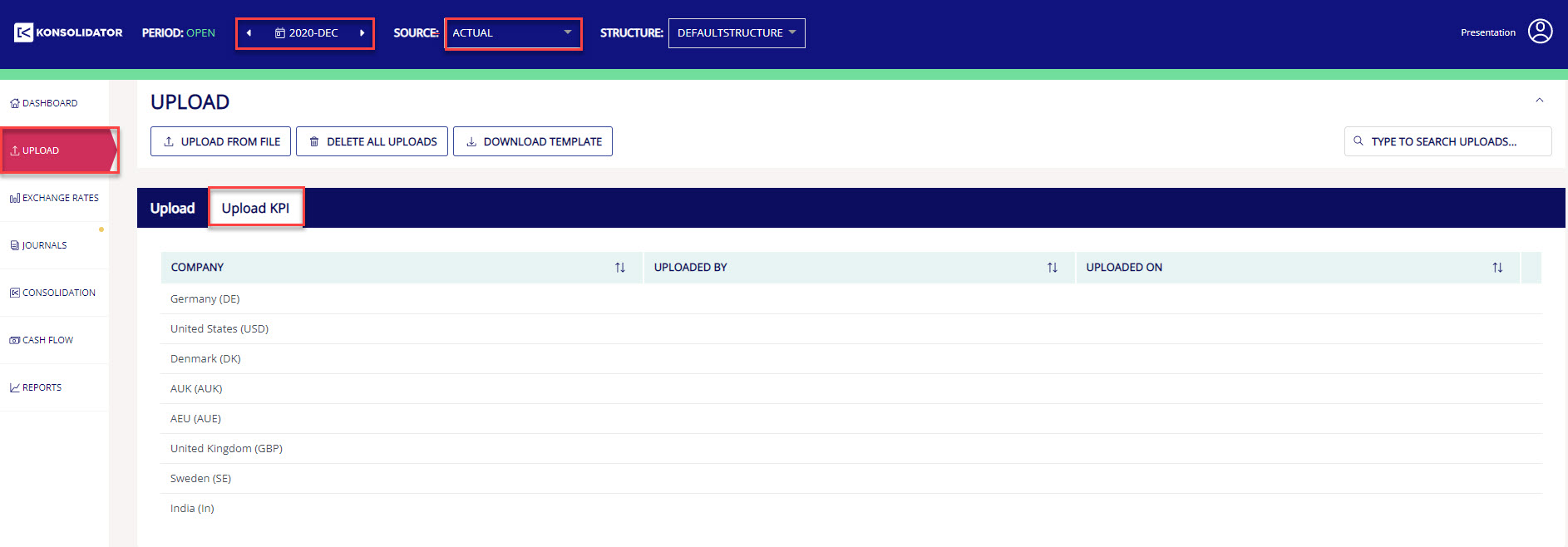
The period is selected on the blue top bar. Here it is also possible to select the data source. In this example, we focus on uploading actual numbers to Konsolidator for December 2020 (accumulated year-to-date numbers).
Click on the button "Download template" to download the upload template.
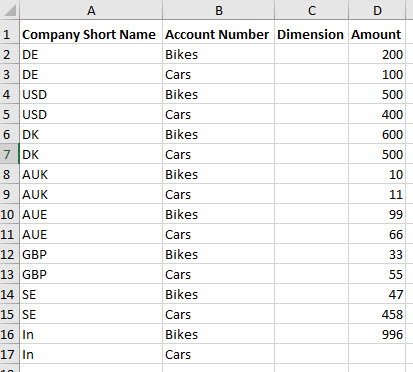
The template contains one sheet that is a matrix of all entities within your group structure and all manual-created KPIs. Since this is a full matrix there can be lines that are not relevant for all entities. These should just be left empty when uploading data for a specific period.
In column D you type in the amounts with the following requirements:
- Local currency for each entity
- Accumulated (Year-to-date number)
- Correct in relation to debit/credit where revenue and liabilities are credit (minus) and cost and assets are debit (positive)
After filling in the relevant information we are ready to upload the template to Konsolidator.
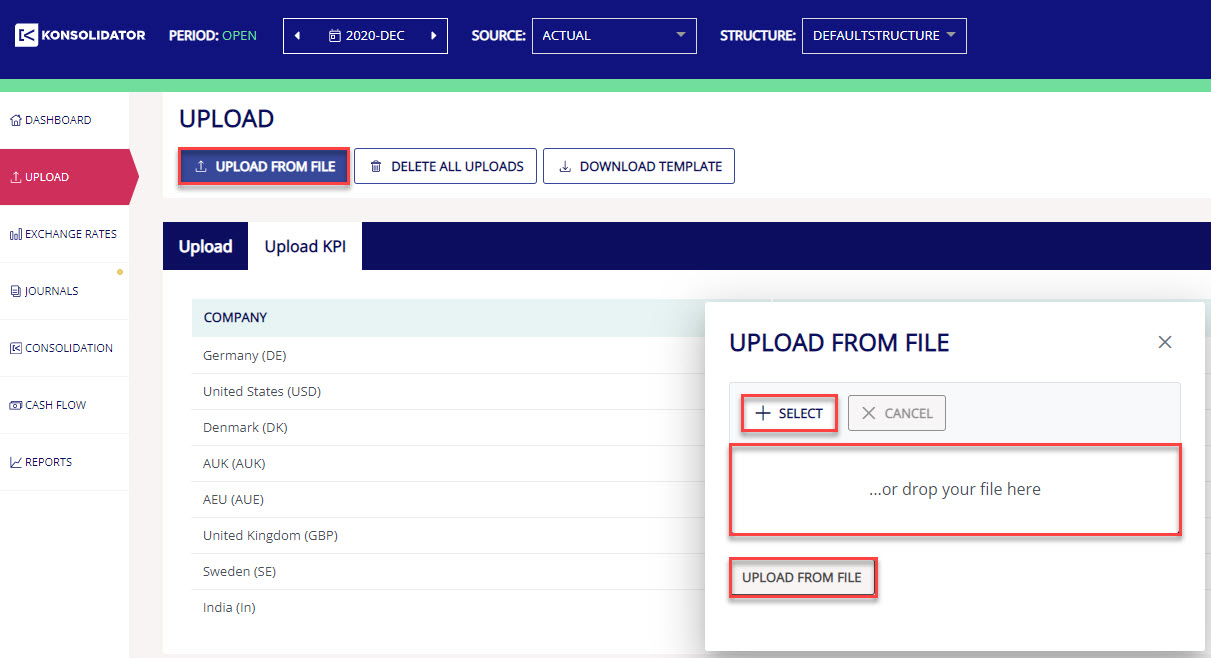
When the upload file is finalized and ready for upload you click on "Upload from file" and either select or drag/drop the file and click "Upload from file".
Now the upload of KPIs appears in the overview. If you want to see the specific uploaded KPIs for each entity you can click the three dots and select view KPI.
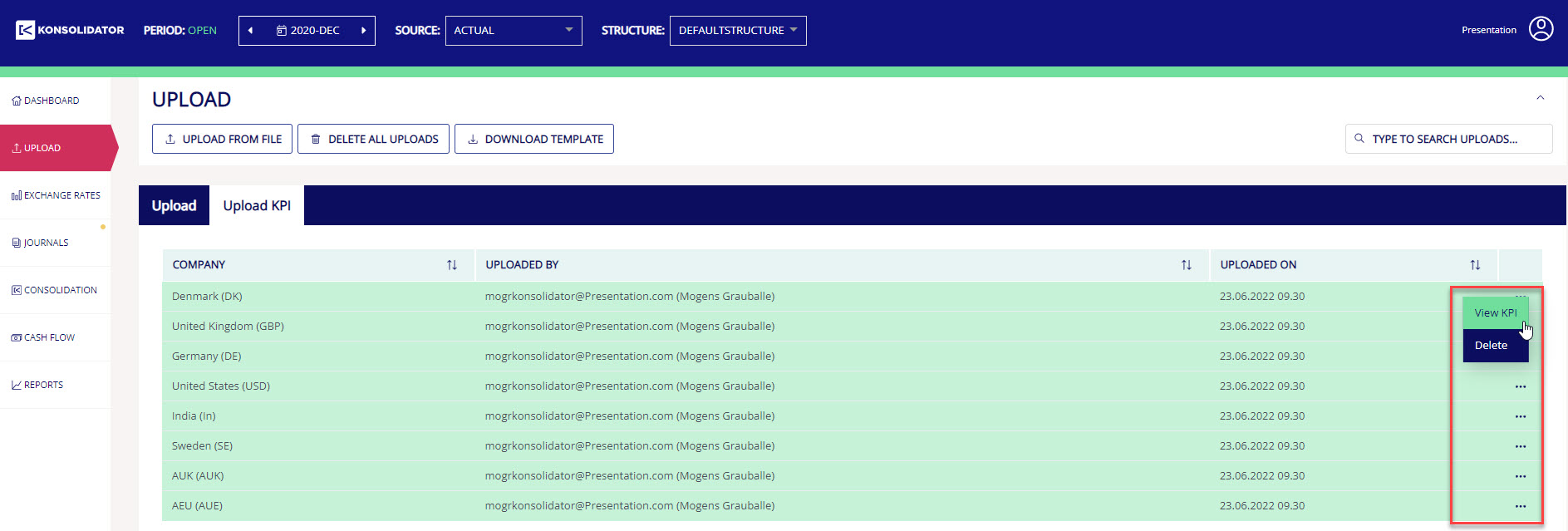
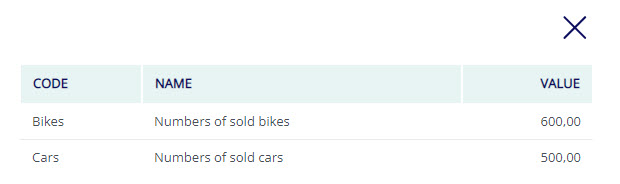
Hereafter you can see all KPIs uploaded for the selected entity. In this example the uploaded KPIs for Company short name DK.