This guide is for you that are managing users access levels inside Konsolidator. By doing this you will ensure that user only have access to information that they should see. This is fundamental in any systems when working with confidential financial information
Before you start
- To use the security settings, you must be an administrator.
- Have a plan for which users need access to what information/companies.
Step by step guide
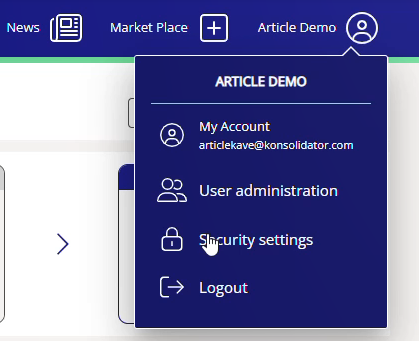
Start by going to the security settings page. Click on the person icon in the top right corner, and hereafter click on “Security settings”.
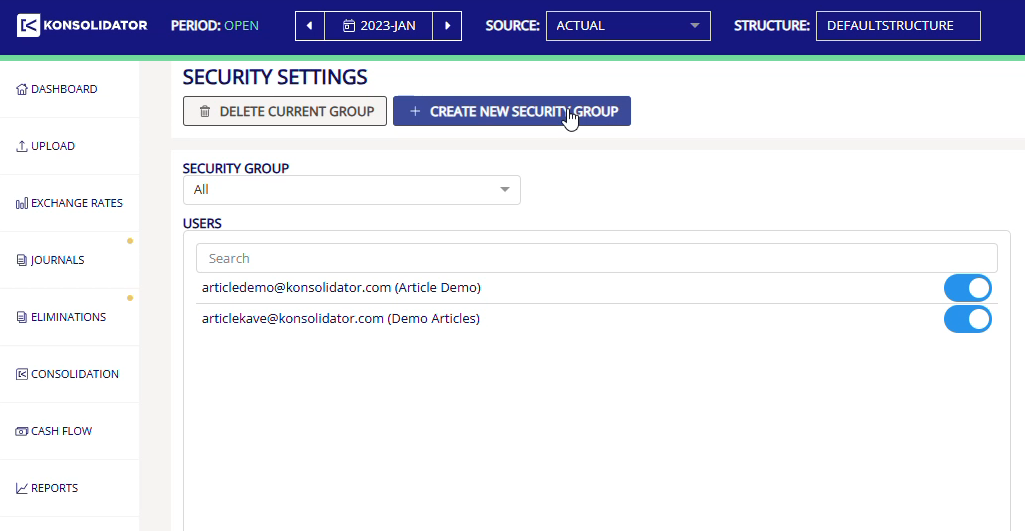
Create a new security group
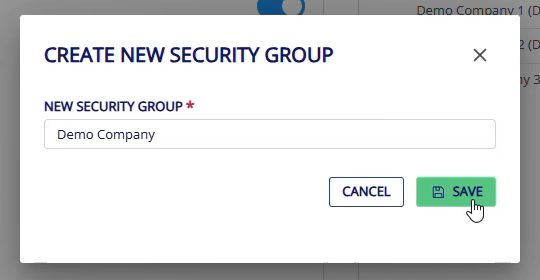
- Press the “+CREATE NEW SECURITY GROUP” button.
- Give a name for the new group.
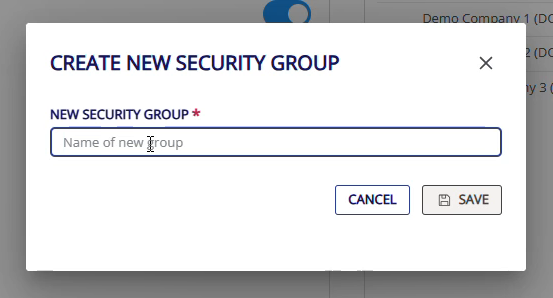
- Press the save button.
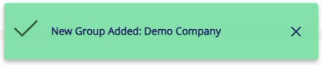
- When created you should receive a success message.
Delete a security group
- Select the group from the “SECURITY GROUP”-dropdown menu.
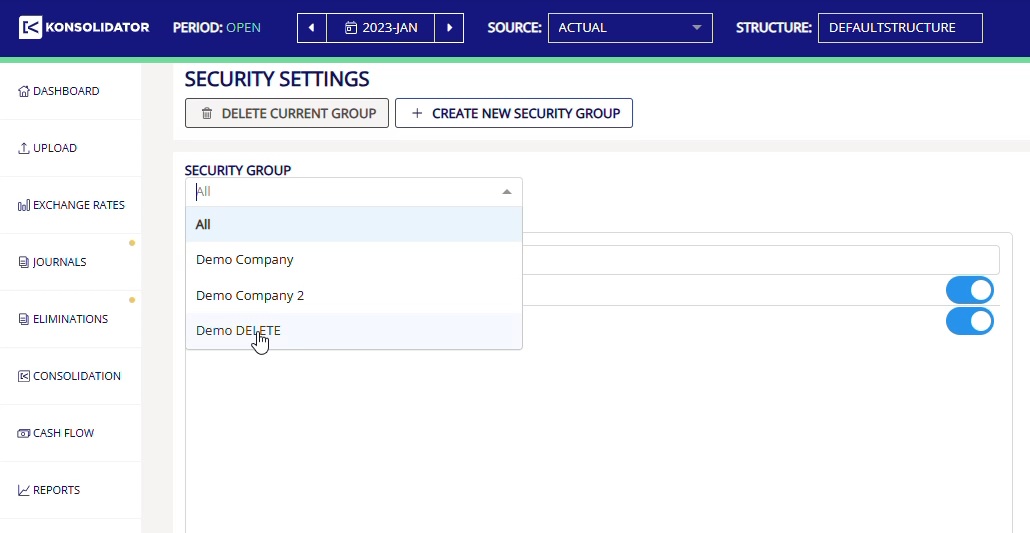
- Make sure you are in the wanted group! This is the group that will be deleted.
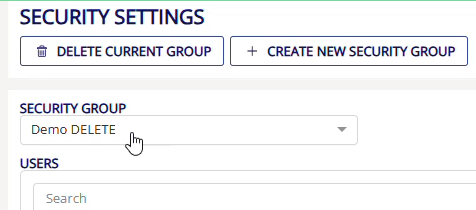
- Now press the “DELETE CURRENT GROUP” button.
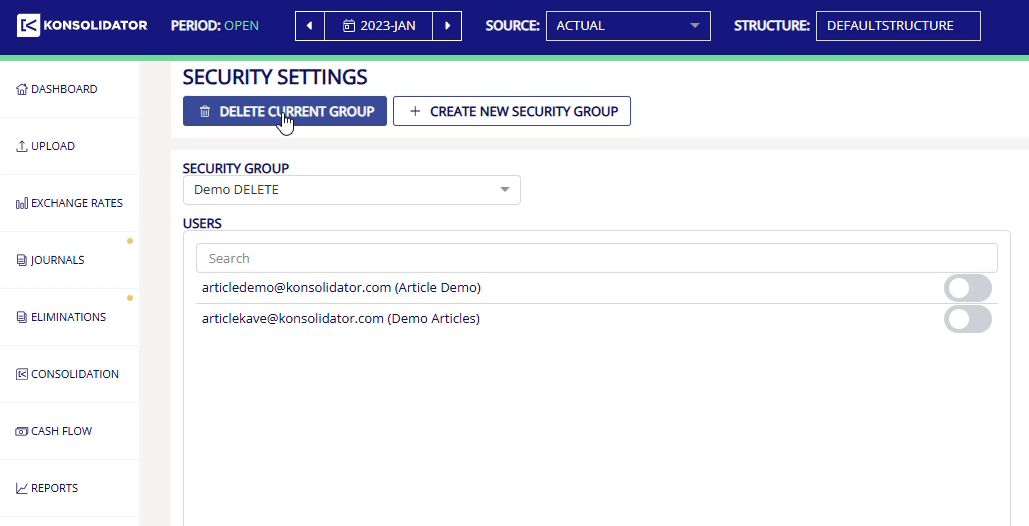
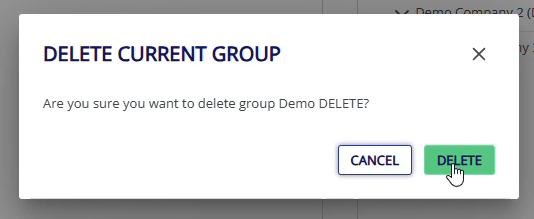
- On the popup press “DELETE” button.
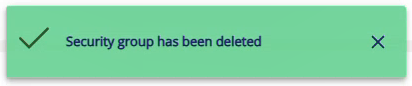
- When deleted you should receive a success message.
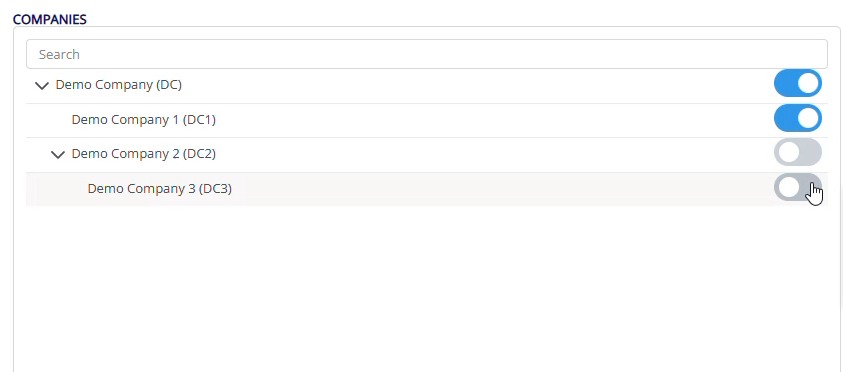
Select companies to security group
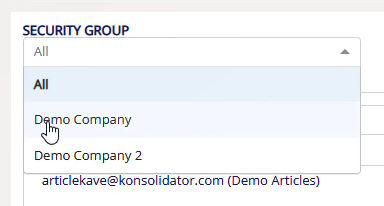
- Select the group from “SECURITY GROUP”-dropdown menu.
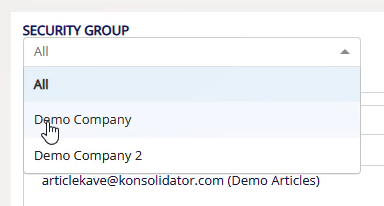
- Toggle on or off companies that the security group should contain.
Select user to security group
- Select the group from “SECURITY GROUP”-dropdown menu.
- Toggle on or off users that should have access to the security group.

Our recommendations
As default on the autogenerated security group “All”, every user and company are toggled ON.
When creating a new security group every user and company is toggled OFF as default.
Important