
Do not click "Refresh"
It is not recommended that you update your credentials by just clicking "Refresh" in your workbook, which prompts you that your credentials are wrong, and then updating them in the prompt. This might cause problems if you have multiple queries in your workbook, as your changes might not apply to all of them, and you will continue to be prompted even when the credentials you have entered are correct.
Step 1: Go to Data Source Settings
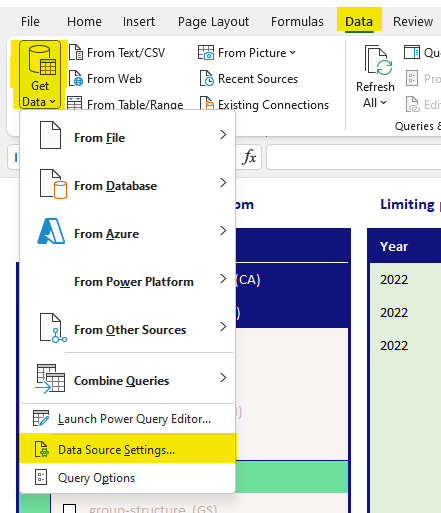
In Excel, click on the "Data" tab to show the "Data" ribbon. On the "Data" ribbon, click on "Get Data", then click on "Data Source Settings...".
Step 2: In the pop-up, click "Edit Permissions"
You will now see a pop-up window in Excel. In this window, select the Konnect API ("https://api.konsolidator.com/v2") and click "Edit Permissions...".
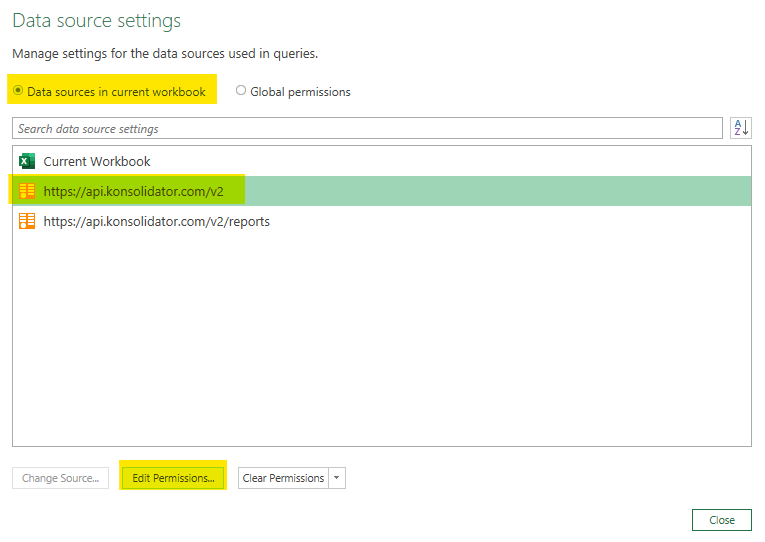
You should only select and change the above URL, as the "https://api.konsolidator.com/v2/reports" inherits from the higher-level URL. Unless you have previously changed both manually.
Step 3: In Edit permissions, click edit
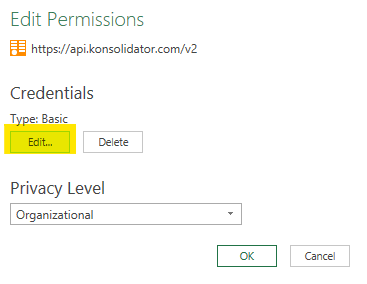
In the new pop-up window, click the "Edit..."-button.
Step 4: Go to Basic and type your new credentials
In the new pop-up window select "Basic" and type in the new "User name" and "Password". Then Click "Save".
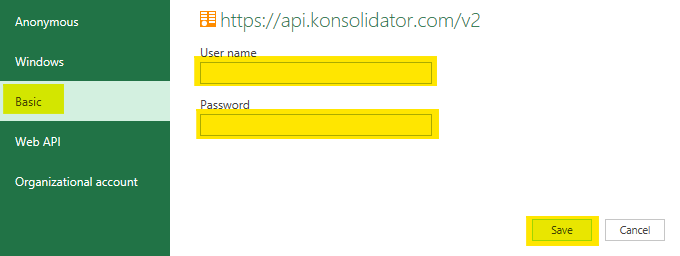
Now click "OK" in the "Edit Permissions"-window and then click "Close" on the "Data source settings"-pop-up.
You are now ready to refresh your reports with your updated credentials.